For now,
there's only one Chromebook that will do it, the ASUS Chromebook Flip,
but soon most newer models Chromebooks will be able to run most of the
1.5 million Android apps.

The ASUS Chromebook Flip, the first Chromebook that can run Android apps, is here. Others such as the 2015 Chromebook Pixel and the Acer Chromebook R11 will soon be able to run them as well.
To run Android apps on Chromebooks, for now, you'll need take the following steps.
First,
you need to switch your Chromebook to the developer channel. This will
give your Chromebook the latest, bleeding edge release of ChromeOS. Be
warned: These releases are unstable.

In addition, once you switch to the dev channel, if you go back to
the stable channel, your solid-state or hard drive will be erased.
Finally, while you can move up to the ChromeOS release that supports
Android apps, ChromeOS 53.0.2768.0, your Chromebook will still not run
the apps until Google activates the functionality for your model. For
example my late model Pixel is on the dev channel, but I still can't run
Android apps on it... Yet.
At the About screen, click on More Info. This link is two-thirds of the way down the screen.

On the next page, click on the Change channel button.
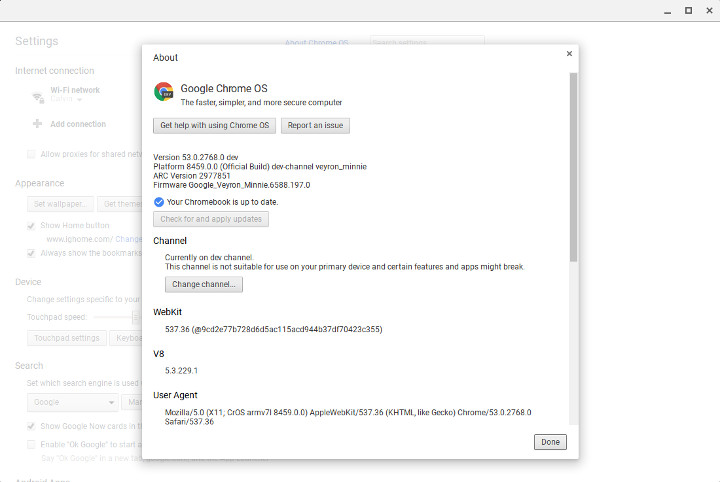
Next, do the obvious thing and check the Developer - unstable button.
They're not kidding by the way. While I've never had any show-stopping
problems using ChromeOS developer releases, I have experienced quirks.

To finish the job, you can either let your Chromebook sit for a few
minutes or just reboot it. In either case, your device will take a few
minutes to download and update your system to the latest ChromeOS
release. You'll then need to reboot it.
After the system has rebooted and you're running the
developer channel release, go to the settings main page and run down to
the new Android Apps menu item and click Enable Android Apps to run on
your Chromebook.

If you don't see this, check, using About ChromeOS, to make sure
you're running ChromeOS 53 or later. If you're not, repeat the steps to
patch your system. More likely though Google hasn't enabled your
Chromebook to run Android apps yet.
Give it time. By summer's end most Chromebooks will support Android apps.
After you've enabled Android apps to run on your Chromebook, you'll see the new Google Play on Chromebook display. Click Agree.

Now you'll need to log in to this new Google Play store with your
Google login and you can start installing Android apps on your
Chromebook.
Since I think the best use for Android apps on a Chromebook is to make it a full desktop replacement operating system, let's start by -- oh the irony! -- installing the Android version of Microsoft Word on my Chromebook.

Whether you install Word, or any other app, the first window you'll see
lets you know that your Chromebook will be running apps as if it were
Android 6. This means both better security, as the page states, but it
also means you'll only be able to run a single Android app at a time in
focus.

And -- what do you know! -- here I am running Microsoft Word natively on Linux! By way of Android and ChromeOS.

Most, but not all Android apps, such as the Amazon Kindle reader, will now run on Chromebooks.
Enjoy!
zdnet
Comments
Post a Comment